Axoma - Google Slide Template: A Flexible Presentation Foundation for Professionals and Creators
Presentations are rarely the end goal themselves. They are the vehicle for something else: a pitch, a report, a lesson, a product launch, or a strategic update. The quality of that vehicle matters because it directly affects how your message lands. If you spend too much time wrestling with slide layouts, color schemes, or image placement, you lose focus on the content itself. That is where a well-built template like Axoma - Google Slide Template enters the workflow—not as a decorative afterthought, but as a structural tool that lets you move faster and communicate more clearly.
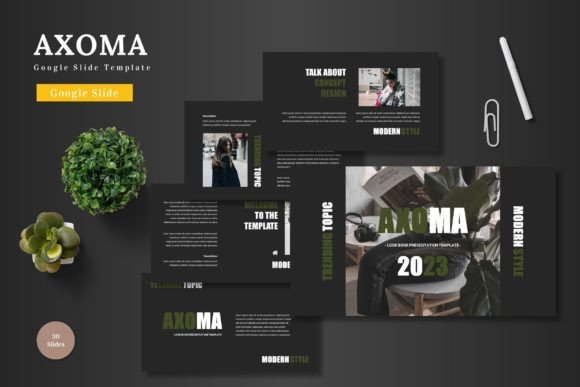
Axoma is a Google Slides template designed for professionals who need clean, scalable, and colorful presentation assets without the overhead of complex design software. With 150 total slides across five premade color variations and 30 slides per template section, it offers enough flexibility to handle business decks, pitch books, e-commerce catalogs, product presentations, and personal projects. The entire system is built on Google Slides shapes, so you can edit everything directly in the browser without touching PowerPoint, Illustrator, or Keynote.
Where Axoma Fits in a Real Workflow
Most presentation work happens in three phases: preparation, assembly, and delivery. Axoma serves every phase, but the way you use it shifts depending on where you are in the process.
Before a project—when you are still defining the narrative arc, gathering data, or outlining key points—Axoma helps by giving you a structural reference. Browsing through its 150 slides, you can see how section breaks, infographics, image placeholders, and gallery layouts are arranged. This gives you a visual vocabulary for your content before you even start dragging slides into a deck. You can plan your story around what the template supports, which saves you from designing custom layouts on the fly.
During assembly—when you are actually building the deck—Axoma speeds up the mechanical work. You drag and drop images into picture placeholders, replace placeholder text with your own copy, and adjust colors using the premade color schemes. Because everything is built with Google Slides shapes, you do not need external software. Resizing, repositioning, recoloring, and duplicating slides all happen natively inside Google Slides. The template includes handcrafted infographic elements, pixel-perfect illustrations, and resizable graphics that maintain clarity across different screen sizes.
After delivery—when the presentation is done and you are either repurposing it or archiving it for future use—Axoma remains useful. Since the template is based on master slides, you can create new decks later using the same structure and color variation. This consistency is helpful if you regularly present to the same stakeholders and want to maintain a recognizable visual language across multiple presentations.
How Axoma Interacts with Your Existing Tools and Assets
The template lives entirely inside Google Slides, which means it works naturally with other Google Workspace tools. You can embed charts from Google Sheets, link to Google Docs, or pull in images from Google Photos. This integration removes the friction of exporting and importing assets across platforms. If your workflow already involves Drive, Docs, Sheets, or Gmail, Axoma slides into that ecosystem without a learning curve.
Because all graphics are resizable and editable, you can adapt Axoma to match brand guidelines that go beyond the five included color variations. The template ships with five premade color schemes, but you are not locked into them. Using Master Slides, you can override the palette and apply your own brand colors across the entire deck in a few clicks. This is useful for agencies that present on behalf of multiple clients, or for internal teams that need to align with corporate identity standards.
The picture placeholders accept drag-and-drop image replacement. You do not need to crop, resize, or mask images beforehand—the placeholder handles the framing. This saves time during asset preparation, especially if you are working with a large batch of product photos, team headshots, or portfolio images. For e-commerce or product promotion workflows, where visual consistency across slides matters, this feature alone reduces the round-trips between editing software and presentation software.
Practical Implementation Tips
Getting the most out of Axoma means understanding how to work with its structure rather than against it. Here are several practical approaches based on common use cases.
Start with the right color variation
The template includes five color schemes. Before you begin inserting content, choose the variation that best matches your brand or the tone of your presentation. If you are pitching to a conservative investor, a muted palette might work better than a vibrant one. For internal creative reviews, a bolder scheme could reinforce the energy of the ideas. Switching colors later is possible using master slides, but starting with the right scheme reduces rework.
Use section break slides as narrative anchor points
Axoma includes dedicated section break slides. Use these to divide your presentation into meaningful chapters. In a pitch deck, for example, you might break after the problem statement, before the solution, and again before the financial projections. For an e-commerce portfolio, section breaks can separate product categories or seasonal collections. These slides create breathing room for your audience and make the structure of your story easy to follow.
Exploit the infographic slides for data heavy content
If your presentation includes statistics, growth metrics, or comparative data, the handcrafted infographic slides are where Axoma adds real value. Instead of pasting raw charts or tables, you can use the built-in infographic elements to visualize information in a way that is immediately understandable. The graphics are fully editable, so you can adjust the data points, change the icon sets, or reorder the layout without starting from scratch.
Build a reusable master slide library
Because Axoma is based on master slides, you can customize a few layouts and then save the whole file as a template for future use. This is especially useful if you produce multiple presentations per quarter. Once you have branded the template with your logo, fonts, and color palette, you can reuse it for monthly reports, client updates, or product launch decks. Over time, this creates a consistent visual standard across your organization without requiring designers to rebuild slides each time.
Workflow Examples Across Different Use Cases
Let us walk through three concrete scenarios to illustrate how Axoma integrates into real projects.
Scenario 1: Startup pitch deck. A founder needs to create a 30-slide deck for a series A meeting. They have one week and no design support. Using Axoma, they select a clean color scheme, start with the section break slides to define the narrative arc, and then populate the content slides with their traction data, market analysis, and team bios. The picture placeholders make it easy to drop in product screenshots and team photos. The infographic slides turn their customer acquisition cost and lifetime value metrics into visual stories. The animated slides add motion to the opening and closing without requiring custom animation work.
Scenario 2: E-commerce product catalog. An online retailer wants to present a seasonal collection to wholesale buyers. They need a deck that showcases products consistently. Using the gallery and portfolio slides in Axoma, they create a layout where each product has a dedicated slide with an image placeholder, a headline, and a bulleted feature list. The drag-and-drop image replacement means they can batch import product photos in minutes. The five color variations allow them to create different editions of the same catalog for different market segments.
Scenario 3: Internal quarterly review. A marketing team needs to report Q3 results to leadership. The data includes website traffic, conversion rates, campaign performance, and budget spend. Using Axoma, the team creates a structured deck with section breaks for each department. The infographic slides visualize year-over-year growth. The master slide-based layout ensures that each team member can add their slides without breaking the overall design. The result is a cohesive report that looks professionally designed, even though multiple people contributed.
Quality Control and Long-Term Use
One factor that often gets overlooked in presentation templates is long-term maintainability. Many templates look good on the first use but fall apart when you need to update them six months later. Axoma avoids this by using Google Slides native shapes rather than embedded images or external objects. This means you can open a deck you created a year ago, change the color scheme, update the text, replace the images, and the structure still holds. The pixel-perfect illustrations and resizable graphics scale without degradation, so you are not limited to fixed aspect ratios or sizes.
For quality control, the template provides a consistent baseline. When multiple team members contribute slides to a single deck, Axoma's structured layouts prevent formatting drift. Everyone uses the same master slides, so font sizes, spacing, and color treatments remain uniform. This is especially important in larger organizations or agencies where presentations go through legal, brand, or executive reviews. A consistent visual standard reduces the back-and-forth on formatting details and lets reviewers focus on content.
Preparing to Use Axoma Smoothly
Before you start working with the template, take a few minutes to set yourself up for efficiency. The main file includes five PPTX files organized by color scheme, plus a readme file with font and photo information. Open the color variation you anticipate using most, review the readme for any specific font dependencies, and confirm that your images are sized appropriately for the placeholders. The template supports widescreen layout, so design your assets with a 16:9 aspect ratio in mind.
If you are collaborating with others, share the master template file through Google Drive rather than sending copies. This way, everyone works from the same source file, and you avoid version conflicts. When you need to create a new deck, make a copy of the master template and rename it for your specific project. This preserves the original template for reuse.
Why a Template Like Axoma Matters for Your Process
Every professional has a limited amount of cognitive energy to spend on any given project. The more you spend on slide formatting, the less you have for message clarity, narrative structure, and audience engagement. Axoma does not replace the work of crafting a good presentation—it removes the friction that gets in the way of that work. By handling the visual scaffolding, it lets you focus on what to say and how to say it.
Whether you are preparing a business pitch, an e-commerce catalog, a product launch, or an internal report, a structured template like Axoma gives you a reliable foundation. It is not about having more slides; it is about having the right slides for your content and being able to adapt them quickly. For professionals who value efficiency, consistency, and quality, that makes a meaningful difference in how presentations get built and how they are received.