Etunora – Keynote Template: What to Know Before You Buy and How to Use It Right
Choosing a presentation template is one of those decisions that seems simple until you are halfway through customizing it and realize the layout does not flex the way you need. You have likely been there: you download a template expecting to drop in your content and be done in an hour, only to spend three more fighting with locked elements, mismatched colors, or slides that do not hold your text properly. The Etunora – Keynote Template is designed to avoid exactly those frustrations, but even a well-made template can trip you up if you approach it with the wrong expectations. Let me walk through what this template offers, where people commonly go wrong, and how you can get the most out of it without the headaches.
What Etunora Actually Delivers
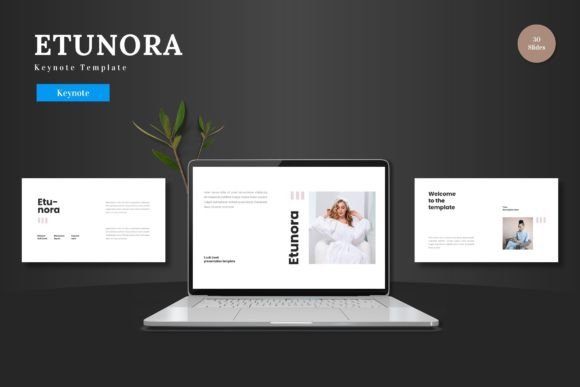
Etunora is a multipurpose Keynote template built around 150 total slides spread across five distinct color variations. Each color set gives you 30 slides, plus section break slides, infographics, gallery and portfolio layouts, and animated transitions. Every element is constructed from native Keynote shapes, which means you do not need Photoshop, Illustrator, or any other software to edit anything. You can change colors, resize graphics, replace placeholder images, and adjust text directly inside Keynote. The template comes as five separate .key files, one for each color scheme, plus a readme file with font information and photo credits. It is suitable for business pitches, e-commerce presentations, product launches, or personal projects—basically any context where you need a clean, scalable, and colorful slide deck without starting from a blank canvas.
That sounds straightforward, and it is, but the gap between “I bought a template” and “I have a polished presentation” often comes down to a handful of avoidable missteps. Here are the most common ones I see, along with the corrections that will save you time and deliver a better result.
Mistake 1: Treating All 150 Slides as a Single Deck
One of the biggest misunderstandings with Etunora is that you are meant to use all 150 slides in one presentation. That is not the intention, and trying to do so will produce a bloated, unfocused deck that overwhelms your audience. The template gives you five color variations precisely so you can pick the one that fits your brand or message, then select only the slides you need from that set. Each of the five color schemes contains 30 slides, and within those you will find title layouts, content slides, section breaks, infographic panels, gallery pages, and portfolio spreads. Your job is to choose the layouts that support your narrative and delete the rest.
Better approach: Open the color variant that aligns with your brand or the tone of your presentation. Review each slide and ask yourself, “Does this move my story forward?” If it does not, remove it. You might end up with 10 to 15 slides, and that is fine. A tight, intentional deck always outperforms a long one that covers every layout just because it exists.
Mistake 2: Assuming the Color Scheme Is Final
Etunora comes with five premade color schemes, and they look great out of the box. But people often treat these as fixed palettes, either because they do not realize they can change them or because they worry breaking the design will make it look amateurish. The truth is, every colored element in this template is built from editable Keynote shapes. You can select any object—a shape, a line, a background block—and change its fill color to match your own brand colors. The five included schemes are starting points, not prisons.
Where this goes wrong is when someone tries to force their brand colors onto a scheme that clashes, resulting in a muddy or inconsistent look. For example, if your brand uses warm oranges and the template variant you picked is cool blue, you might end up with a slide where the headline color fights against the background. The fix is simple: choose the variant whose base palette is closest to your own, then make targeted adjustments.
Better approach: Lay your brand colors out in a separate document. Open each of the five Etunora files and see which one has a similar lightness and saturation range. Once you pick the right base, use Keynote’s shape inspector to recolor the accent shapes, text boxes, and infographic elements. Keep the background colors close to their original values to preserve the template’s contrast balance. This way your branding comes through without breaking the template’s visual rhythm.
Mistake 3: Overlooking the Animated Slides Until the Last Minute
Etunora includes animated slide transitions and element animations. A common oversight is to ignore these during the editing phase and only discover them during rehearsal, at which point the timing feels off or the animations clash with your speaking pace. Animations can enhance a presentation when they are intentional, but they will work against you if you do not plan for them. The template’s animations are built using Keynote’s built-in magic move and object builds, which means they are smooth and professional—but only if you take the time to align them with your content flow.
Some presenters disable all animations because they fear they will seem unprofessional. That is a missed opportunity. Used sparingly, animations can guide your audience’s attention, reveal information step by step, and make an infographic feel dynamic. The mistake is either using none of them or using all of them without consideration.
Better approach: As you build your deck, decide which slides would benefit from a reveal effect. Section titles and infographic slides are natural candidates. Keep body content slides static—your audience does not need text flying in while they are trying to read it. Once you finalize your content, do a full run-through with the animations enabled. Adjust the duration so each build matches your natural speaking rhythm. If an animation feels distracting, remove it rather than try to speed it up.
Mistake 4: Using the Wrong Image Sizes in Placeholders
Etunora uses picture placeholders that accept drag-and-drop images. That convenience sometimes leads people to drop in whatever image they have on hand without checking its dimensions or resolution. The result is a slide where the image looks pixelated, stretched, or awkwardly cropped. The placeholder frames are sized for high-resolution landscape and portrait ratios, but if your source image is too small or has the wrong aspect ratio, it will not fill the frame properly.
The template’s gallery and portfolio slides are especially sensitive to this because they display multiple images side by side. If one image is low resolution, it stands out immediately against the crisp graphics and text.
Better approach: Before you import any image, resize it to at least 1920 pixels on its longest edge. Maintain the original aspect ratio—do not squash or stretch. When you drag the image into the placeholder, use Keynote’s “Edit Mask” feature to crop it exactly how you want within the frame. This keeps the image sharp and ensures every photo looks deliberate. For the portfolio slides, use images that are all the same orientation (for example, all landscape or all portrait) to keep the layout balanced.
Mistake 5: Ignoring the Readme File and Font Details
Etunora comes with a readme file that lists the fonts used and provides photo credits. A surprisingly common mistake is to skip this file entirely. You open the template, see beautiful typography, and start editing. But if you do not have the fonts installed, Keynote will substitute them with something generic, and your entire deck will lose its polish. The template uses specific fonts that give it that clean, modern look, and when those fonts are missing, the text spacing, weight, and overall feel shift noticeably.
The same applies to the photo credits. Some users repurpose the sample images for their own projects without checking the license terms. The readme file clarifies which photos are royalty-free and which require attribution. Overlooking this can lead to unintended licensing issues, especially if you plan to use the presentation commercially.
Better approach: Before you open the .key file, open the readme file and note the font names. Download and install them. Most of the fonts used are available through Google Fonts or foundries like Typekit, so this step takes five minutes. Also note which images are included as samples versus placeholders. If you plan to keep any of the sample photos, check the attribution requirements and add credits where needed. Doing this upfront prevents a last-minute scramble right before your presentation.
Mistake 6: Overcomplicating the Infographics
Etunora includes handcrafted infographic slides—charts, process flows, timeline graphics, and data visualizations built from shapes. These are some of the most valuable slides in the template because they save you from building complex graphics yourself. However, people often try to cram too much data into them or edit the shapes in ways that break the visual logic.
An infographic slide that was designed to show three steps gets stretched to show six, and the spacing collapses. Or a bar chart graphic gets recolored in a way that makes the data harder to read. The template’s infographics are editable, but they were designed with specific proportions and color hierarchies. Changing those without understanding the underlying structure can turn a clean graphic into a confusing mess.
Better approach: Stick to the number of elements the infographic was built for. If you need to show six steps, find a slide that was designed for six steps—there are multiple layout options in the 30-slide set. Modify the text and data, not the shape structure. If you want to change the color of an infographic, keep the same lightness contrast: use a darker shade for the main element and lighter shades for secondary ones. This preserves the readability that the template originally provided.
Mistake 7: Forgetting That Templates Are Scaffolds, Not Scripts
This is the most fundamental mistake of all. A template like Etunora gives you a visual structure, but it cannot write your content for you. I have seen people buy a great template and then fill it with cluttered bullet lists, long paragraphs, or data tables that were never meant to fit those layouts. The result is a presentation that looks polished at a glance but feels crowded when you actually read it.
The template’s clean, scalable design works best when you respect its white space. If a layout has room for three bullet points, do not try to force in six. If a slide has a large image area and a small text block, use it as a visual slide with a short caption, not as a text-heavy slide with a tiny image.
Better approach: Write your content before you open the template. Distill each point to its essence—one idea per slide, no more than three supporting details. Then match each idea to a layout that fits. If none of the 30 slides in your chosen color variant works for a particular piece of content, create a new slide from scratch using the same fonts and color palette. The template gives you a head start, but it is not a straitjacket. Use it as a tool, not a rulebook.
Before You Download: What to Check
If you are considering Etunora for an upcoming project, here is a quick checklist to ensure it is the right fit:
- Confirm that your version of Keynote supports the file format. The template is built for macOS Keynote and works best on recent versions.
- Review the five color schemes in the product preview. Make sure at least one aligns with your brand or the mood you want to convey.
- Check the font list in the readme and verify you can access those fonts. If you cannot, have a fallback pair that matches the style (e.g., a sans-serif for headings and a clean sans-serif for body text).
- Assess your content volume. If you need only 10 slides, this template gives you plenty of options to choose from. If you need 100 slides, you can still use it, but you will want to mix layouts across color variants intentionally.
- Consider who will view the presentation. For a pitch deck, prioritize the clean, infographic-rich slides. For an e-commerce product launch, use the gallery and portfolio spreads heavily. Let the audience dictate which slides you pull from the set.
Etunora is a solid, flexible template that suits a wide range of presentation needs. The quality is in the details—editable shapes, consistent spacing, six types of slide categories, and animations that feel natural rather than gimmicky. But like any tool, its value depends on how you use it. Avoid the common mistakes I covered here, and you will end up with a presentation that looks custom-made, not templated. Take the time to plan your content, choose your color variant thoughtfully, edit within the structure, and test your animations ahead of time. The result will be a deck that supports your message instead of competing with it.