Mulesa Google Slide Template: A Complete Guide to Professional Presentations
Creating a presentation that captures attention, communicates clearly, and leaves a lasting impression is no small task. Whether you're pitching a business idea, showcasing an e-commerce product line, or presenting a quarterly report, the design of your slides can make or break your message. Enter Mulesa, a versatile Google Slide template that combines clean aesthetics, scalability, and vibrant color schemes to help you build polished presentations quickly—without needing advanced design skills.
In this guide, we'll explore everything Mulesa has to offer, from its core features and practical applications to tips for getting the most out of this ready-to-use template. By the end, you'll understand why Mulesa is a smart choice for professionals, entrepreneurs, educators, and creatives alike.
What Is the Mulesa Google Slide Template?
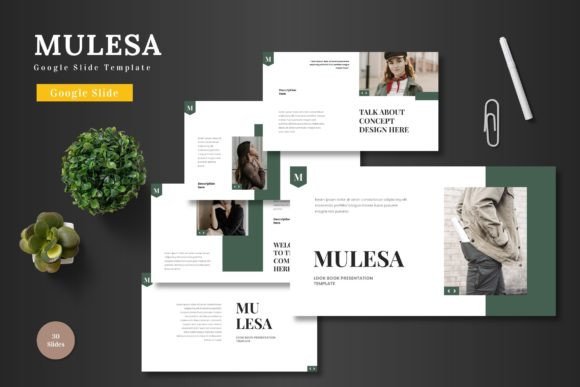
Mulesa is a comprehensive, multipurpose presentation template built specifically for Google Slides. It comes with 150 total slides organized into five pre-made color variations, with 30 slides per template set. The template is designed to be fully editable using native Google Slides tools—no external software required. You can change colors, swap images, adjust text, and rearrange elements directly in your browser.
Because Mulesa is built on master slides, every design element remains consistent throughout your presentation. This saves you time and ensures a professional, cohesive look. The template also includes handcrafted infographics, pixel-perfect illustrations, and section break slides that help you structure your content logically.
Who Is Mulesa For?
Mulesa is suitable for almost any presentation need, but it shines in these areas:
- Business professionals – Perfect for pitch decks, company overviews, and annual reports.
- E-commerce marketers – Showcase products, portfolios, and gallery slides with drag-and-drop image placeholders.
- Educators and trainers – Create engaging lesson slides, workshop materials, or course summaries.
- Creative freelancers – Present your portfolio or design proposals with a clean, colorful layout.
- Startups and entrepreneurs – Pitch to investors with confidence using a template that looks custom-made.
Why Use a Google Slides Template Like Mulesa?
You might wonder: "Why not just design slides from scratch?" The answer lies in efficiency and consistency. Building a presentation from the ground up takes time, and unless you're a skilled designer, the results may feel disjointed or unprofessional. A template like Mulesa gives you a proven structure that works across different contexts.
Here are some key benefits of using a Google Slides template:
- Time savings – Skip the formatting and focus on your content.
- Design consistency – Master slides ensure fonts, colors, and spacing remain uniform.
- Easy collaboration – Google Slides lets multiple people work on the same presentation in real time.
- Cloud-based access – Your slides are always available, and you never have to worry about file versions.
- No extra software – Everything is done inside Google Slides, right in your browser.
Mulesa takes these benefits further by offering five color variations right out of the box. Whether you want a bold, energetic palette or a soft, minimal look, you can pick the scheme that fits your brand or message.
Key Features of the Mulesa Template
Let's break down the features that make Mulesa stand out from other Google Slides templates.
150 Total Slides Across 5 Color Schemes
Mulesa includes 150 slides in total, organized into 5 pre-made color variations. Each color set contains 30 slides, covering everything from title slides and section breaks to content layouts, infographics, and portfolio pages. This variety means you can build a complete presentation without reusing the same slide design over and over.
Handcrafted Infographics
Data visualization can be tricky to get right. Mulesa includes handcrafted infographics that you can customize to display stats, timelines, processes, and comparisons. These infographics are built as editable shapes within Google Slides, so you can change colors, resize parts, or add your own labels.
Pixel-Perfect Illustrations
Every graphic in Mulesa is created with precision. The illustrations are pixel-perfect and scalable, meaning they look crisp on any screen or projector. Because they are vector-based shapes, you can resize them without losing quality.
Picture Placeholders for Drag-and-Drop Images
Adding images is simple. Mulesa uses picture placeholders that let you drag and drop your photos directly into the slide. No need to crop or adjust—the placeholder maintains the aspect ratio, and your image fits perfectly. This is especially useful for portfolio or gallery slides where visual consistency matters.
Section Break Slides
Long presentations benefit from visual pauses. Mulesa includes section break slides that help you transition between topics. These slides are designed to be bold and minimal, giving your audience a moment to absorb what they've seen before moving to the next section.
Animated Slides
Mulesa includes animated slide elements that bring your presentation to life. Animations are subtle and professional—think fade-ins, slide transitions, and reveal effects—that add polish without being distracting. You can keep them as-is or adjust the timing to suit your pace.
Based on Master Slides
One of the most practical features of Mulesa is that it's built on master slides. This means any global change you make—like updating the font or adjusting the background color—applies automatically to every slide that uses that master layout. It's a huge time-saver and ensures consistency across your entire deck.
How to Use Mulesa: A Step-by-Step Overview
If you're new to Google Slides templates, here's a simple walkthrough of how to get started with Mulesa.
Step 1: Download and Open the Template
Mulesa comes as a PPTX file (one for each color scheme). You can upload these files directly to Google Drive and open them with Google Slides. The template works seamlessly with the platform, and all editable elements remain intact.
Step 2: Choose Your Color Scheme
Mulesa includes five PPTX files, each with a different color palette. Pick the one that aligns with your brand or the tone of your presentation. You can also further customize colors inside Google Slides if needed.
Step 3: Add Your Content
Click on any text box to replace placeholder text with your own. The fonts are clearly listed in the "Readme First" file, so you can download them if you want to match the original style. For images, simply drag your photo onto the picture placeholder, and it will snap into place.
Step 4: Customize Graphics and Infographics
All graphics are resizable and editable. You can change colors, adjust sizes, or rearrange elements. Because everything is built from Google Slides shapes, you don't need any design software—just click and edit.
Step 5: Apply Animations
Mulesa includes pre-built animations, but you can also add your own or modify the existing ones. Google Slides makes it easy to set entrance, exit, and emphasis effects. Keep animations simple to maintain a professional feel.
Step 6: Present or Share
Once your slides are ready, you can present directly from Google Slides, download as a PDF, or share a link with your team. Because everything is in the cloud, you can present from any device.
Practical Use Cases for Mulesa
To help you see how Mulesa fits into real-world scenarios, here are a few examples.
Business Pitch Deck
Imagine you're preparing a pitch for potential investors. You need slides that communicate your value proposition, market opportunity, financial projections, and team background. Mulesa's clean layouts and infographics help you present data clearly, while the section break slides give your deck a natural flow. The five color options let you choose a palette that reflects your brand identity.
E-Commerce Product Showcase
For an online store launching a new collection, you need visuals that highlight product features, pricing, and customer testimonials. Mulesa's gallery and portfolio slides make it easy to display product images in a grid or carousel style. The picture placeholders ensure every image fits perfectly, and the editable infographics let you show size comparisons or material details.
Educational Workshop
If you're leading a training session or workshop, Mulesa's structured slides help you organize modules, key takeaways, and activities. The infographics are great for illustrating processes or timelines, and the animated slides add a layer of engagement that keeps participants focused.
Creative Portfolio
Freelancers and designers can use Mulesa to showcase their work. The portfolio slides are designed to put visuals front and center, with minimal text. You can customize the color scheme to match your personal brand and use the section breaks to separate different project categories.
Common Questions About Mulesa
Let's address a few things you might be wondering.
Do I need any design software?
No. Mulesa is built entirely for Google Slides. You can edit everything—text, colors, images, shapes—right inside the browser. No PowerPoint, Illustrator, or Photoshop required.
Can I change the fonts?
Yes. The template uses specific fonts that are listed in the included "Readme First" file. You can keep those fonts or swap them for others available in Google Slides. Because the template is based on master slides, font changes apply globally.
Is the template responsive for widescreen?
Yes. Mulesa is designed for widescreen (16:9) format, which is the standard for modern projectors and screens. It displays correctly on laptops, tablets, and most presentation displays.
Can I use Mulesa for commercial projects?
Absolutely. You can use the template for your own business presentations, client projects, or any commercial purpose. The license allows you to customize and present the slides as needed.
What if I need help or have questions?
The "Readme First" file includes setup instructions and font details. Additionally, because Mulesa uses standard Google Slides features, you can find plenty of tutorials and community support online if you want to explore advanced customizations.
Tips for Making the Most of Mulesa
Here are a few practical suggestions to help you get the best results from your template.
- Plan your structure first. Outline your main sections and decide where to use section breaks, infographics, and gallery slides. This ensures a logical flow before you start editing.
- Stick to one color scheme. Mulesa gives you five options, but use only one per presentation to maintain visual consistency. You can, of course, tweak individual slide colors if needed.
- Use high-quality images. The picture placeholders make it easy to swap images, but the final result depends on your photo quality. Use sharp, well-lit images that match your brand.
- Keep text concise. The clean layouts work best when each slide focuses on one key idea. Avoid overcrowding with too much text.
- Leverage master slides. If you want to change the background or add a logo to every slide, edit the master slide. This saves time and keeps everything aligned.
Why Mulesa Aligns with Modern Presentation Needs
Presentations today need to be visual, concise, and adaptable. Audiences have less patience for cluttered slides, and they expect a seamless experience whether they're watching in a conference room or on a remote call. Mulesa delivers on all fronts by providing a design system that is clean, scalable, and colorful without being overwhelming.
The fact that it's built for Google Slides is another advantage. Teams can collaborate in real time, updates are saved automatically, and you never have to worry about file compatibility. For businesses that rely on Google Workspace, Mulesa integrates naturally into your existing workflow.
Furthermore, the handcrafted infographics and pixel-perfect illustrations ensure that your data and visuals look professional—even if you're not a designer. This is especially valuable for small businesses and startups that need to present themselves credibly without a large creative team.
Final Thoughts
The Mulesa Google Slide Template is more than just a set of pretty slides—it's a complete toolkit for building effective presentations. With 150 slides across five color schemes, editable infographics, picture placeholders, and a master-slide foundation, it gives you the structure you need while leaving room for creativity.
Whether you're preparing a business pitch, an e-commerce product launch, a workshop, or a personal portfolio, Mulesa helps you present your ideas with clarity and style. And because everything is editable directly in Google Slides, you can focus on your message instead of wrestling with design tools.
If you're looking for a presentation template that is both versatile and professional, Mulesa deserves a close look. It balances visual appeal with practical usability, making it a solid choice for anyone who wants to communicate better through slides.
So go ahead—choose your color, drop in your content, and present your work with confidence. Your audience will notice the difference.