Nubora Google Slide Template: A Balanced Review for Presentation Designers
When you need to create a presentation that looks polished without starting from a blank canvas, a template like Nubora can save time and provide structure. Designed for Google Slides, this template offers a set of pre-built slides and color schemes intended to streamline the design process. But like any tool, its value depends on how well it aligns with your specific project needs, workflow, and aesthetic preferences. This article provides a practical, non-promotional look at what Nubora offers, where it excels, and where you might want to consider alternative approaches.
What Is the Nubora Google Slide Template?
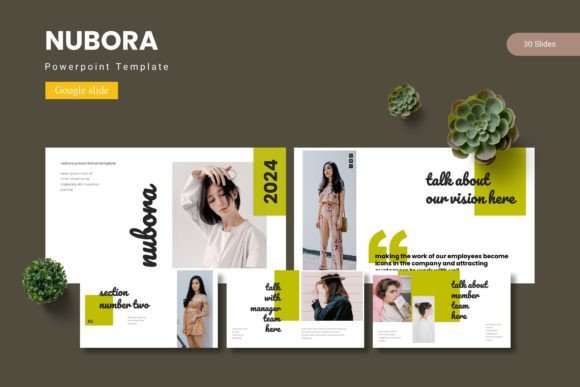
Nubora is a presentation template package built for Google Slides and also compatible with PowerPoint (PPTX format). The core offering includes 150 total slides organized across five distinct color variations, with 30 slides per color theme. The template includes section break slides, infographic elements, master slides, and picture placeholders that allow you to drag and drop images. The design emphasizes pixel-perfect illustrations and resizable, editable graphics. The package comes with five PPTX files and corresponding Google Slides files, along with a folder containing a readme file, font information, and photo credits.
For anyone researching presentation templates, Nubora positions itself as a comprehensive toolkit rather than a single, one-size-fits-all design. The inclusion of multiple color schemes and specialized slide types suggests it was built with versatility in mind, but the real question is whether that versatility translates into practical usability for your specific context.
Core Features and Structural Overview
Understanding what is included in the Nubora template helps you evaluate whether it matches your typical presentation requirements. The feature set can be broken down into several key components:
- Slide count and organization: 150 slides across 5 color variations means you get 30 slides per theme. This provides substantial flexibility if you need to produce multiple presentations with different visual identities.
- Section break slides: These are designed to mark transitions between major topics within a presentation, which can improve audience orientation and narrative flow.
- Handcrafted infographics: The template includes data visualization elements that are based on master slides, meaning you can edit them without disrupting the overall design consistency.
- Picture placeholders: Drag-and-drop functionality for images reduces the time spent resizing and positioning visuals.
- Gallery and portfolio slides: These are specifically designed for showcasing images, making the template potentially useful for creative portfolios or case studies.
- Pixel-perfect illustrations: The graphics are built to maintain clarity at various resolutions, which is important for presentations displayed on different screen sizes.
The template is delivered as both Google Slides files and PPTX files, so you can work in either environment. The five color schemes are premade and consistent across all slide types within each theme.
Benefits and Practical Strengths of Using Nubora
From a practical standpoint, the main advantage of Nubora is the reduction in design time. Instead of building slide layouts, color palettes, and infographic elements from scratch, you can focus on content creation and message refinement. The 30-slide structure per color variation gives you a ready-made narrative arc, which can be especially helpful if you are not confident in your design skills or if you need to produce a presentation quickly.
The presence of section break slides is a subtle but notable benefit. Many presenters neglect transitions, leading to disjointed presentations. Having dedicated slides to signal a shift in topic can improve audience engagement and comprehension.
The infographic elements, being based on master slides, are another strong point. Master slides ensure that any changes you make (like updating a color or a font) apply globally, which saves time and maintains consistency. This is particularly valuable for corporate presentations where branding guidelines must be followed.
The drag-and-drop picture placeholders lower the technical barrier for adding images. Instead of adjusting object sizes and positions manually, you simply insert an image into a designated area, and the template handles the framing. This can be a significant time-saver for presentations that rely heavily on visuals, such as portfolio reviews or photo galleries.
Considerations and Tradeoffs to Keep in Mind
While the template offers many conveniences, there are tradeoffs that may affect your decision. One consideration is the inherent limitation of using a pre-designed template. No matter how many color variations or slide types are included, the underlying structure is fixed. If your content does not fit neatly into the provided layouts, you may spend extra time modifying slides or creating new ones that break the template's consistency.
Another factor is the learning curve associated with master slides and linked graphics. Users who are not familiar with how Google Slides master slides work might accidentally edit a layout element and affect multiple slides. The template assumes a certain level of proficiency with the software, which may not be suitable for complete beginners.
The five color schemes are premade, which is convenient, but they may not match your specific brand palette. If your organization uses custom colors, you will need to manually adjust each theme, which can be tedious. Similarly, the fonts included in the template may require licensing checks if you plan to use them in commercial presentations.
The file structure includes a folder with a readme file and photo information. While this is helpful for attribution, it also means you need to spend time reviewing these documents to ensure you are using the template correctly and legally. For users who prefer a plug-and-play experience, this extra step can be a minor annoyance.
Ideal Use Cases for Nubora
So, where does Nubora make the most sense? Based on its feature set, it is well suited for:
- Business proposals and corporate updates: The structured layouts, section breaks, and infographic elements align well with the need for clear, data-driven presentations.
- Creative portfolios: The gallery and portfolio slides are specifically designed for visual content, making it a strong choice for designers, photographers, or agencies showcasing work.
- Educational or training materials: The consistent slide structure and ability to mix text with visuals can help maintain learner attention over longer presentations.
- Multi-project environments: If you need to produce several presentations with different visual themes (e.g., for different clients or departments), having five ready-made color schemes saves setup time.
In these scenarios, the template's strengths in design consistency and time savings are most apparent. The section break slides and infographics add polish that might otherwise be missing.
Situations Where Alternatives May Be Worth Considering
Conversely, there are situations where Nubora might not be the best fit. Consider alternatives if:
- You need highly customized branding: If your organization requires strict adherence to unique color palettes, fonts, and layouts that go beyond the five provided themes, building a custom template from scratch may be more efficient in the long run.
- You are a beginner with Google Slides: Users who are unfamiliar with master slides, placeholders, and linked graphics might find the template more confusing than helpful. A simpler, more basic template might be a better starting point.
- Your content is highly variable: If each presentation you create has a completely different structure (e.g., some are text-heavy, others are image-heavy, others are interactive), a rigid template may constrain your creativity rather than support it.
- You work exclusively in PowerPoint: While the template includes PPTX files, the primary design is optimized for Google Slides. If you do not use Google Slides, you might find the PowerPoint version less intuitive or less stable.
- You need interactive or animated elements: Nubora is a static template. If your presentation requires complex animations, embedded videos, or interactive buttons, you may need to look for a template specifically designed for those features or build it yourself.
Practical Decision-Making Insights
When evaluating whether Nubora aligns with your goals, start by assessing your typical presentation workflow. Do you often create presentations from scratch, or do you reuse similar structures repeatedly? If you frequently start with a blank slide, this template can give you a productive starting point. If you already have a custom template that works well, the switching cost may outweigh the benefits.
Consider the learning investment. Templates are not entirely free of overhead. You need to understand how to customize them without breaking their integrity. If you are willing to invest an hour or two learning the master slide system and experimenting with the color schemes, Nubora can become a reliable tool. If you prefer to open a file and start typing immediately, some of the template's advanced features may feel like obstacles.
Another practical factor is the future reusability of the template. Because it comes with five color schemes and 150 slides, you can potentially use it for multiple projects over time. That spreads the initial setup cost across many presentations, making it more cost-effective than buying a new template for each project.
Finally, test the template with a small sample of your actual content before committing to it for a major presentation. Insert a few slides of text, some images, and an infographic. See how the layout adapts. This hands-on evaluation will reveal whether the template's structure supports your content or forces it into an uncomfortable shape.
Final Thoughts
The Nubora Google Slide Template offers a structured, visually consistent foundation for creating presentations in Google Slides and PowerPoint. Its 150 slides across five color themes, along with section breaks, infographics, and picture placeholders, provide a practical toolkit for users who want to streamline their design process. However, its effectiveness depends on how well it matches your content needs, your skill level with presentation software, and your willingness to work within a predefined structure. For business proposals, creative portfolios, and multi-project environments, it is a strong fit. For highly customized branding or complex interactive presentations, alternatives may serve you better. The key is to evaluate the template not just on its features, but on how those features align with the specific demands of your work.