Emunora - Google Slide Template: A Practical Presentation Powerhouse
Whether you are preparing a pitch deck for investors, designing a product catalog for an e-commerce store, or building a training module for your team, the quality of your slides directly affects how your message lands. A template that balances visual polish with real-world flexibility saves time and reduces friction. Emunora - Google Slide Template offers exactly that: a clean, scalable, colorful multipurpose deck built on Google Slides, with no need for external software to edit or customize. This article walks through how the Emunora template fits into a typical presentation workflow—from planning and preparation, through active creation, to post-presentation reuse and scaling.
Understanding the Template’s Core Structure
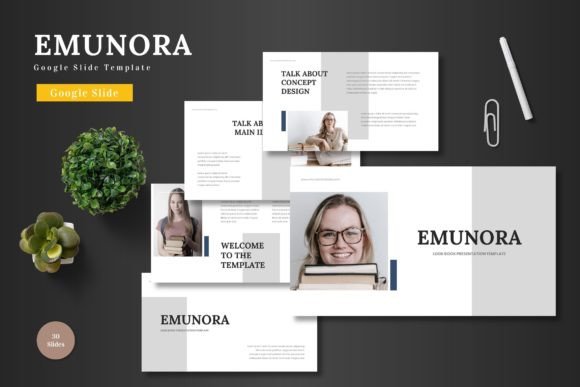
Before diving into implementation, it helps to know what you are working with. Emunora comes with 150 total slides organized into five pre-made color variations, each containing 30 slides. This means you are not starting from zero; instead, you pick a color scheme that matches your brand or project tone and build from there.
The template includes handcrafted infographics, master slides, pixel-perfect illustrations, picture placeholders, section break slides, and gallery/portfolio slides. Every graphic is resizable and editable directly inside Google Slides shapes. No Photoshop, no Illustrator—just your browser and the slide editor. This is a key efficiency factor for anyone who works with tight deadlines or needs to iterate rapidly with client or stakeholder feedback.
From a process standpoint, Emunora acts as a foundation layer. You configure your base design once (pick a color, set fonts, adjust master slide layouts), and then the entire deck inherits those decisions. This consistency is crucial for professional-grade presentations, especially when you need to produce multiple decks for different audiences but keep a cohesive brand identity.
Preparing Your Workflow Using Emunora
The way you prepare before opening the template can make or break your production speed. Here is how to integrate Emunora into the preparation phase of a project, whether it is a pitch, a quarterly review, or a workshop.
1. Asset Gathering and Reference Key
Because Emunora uses picture placeholders with drag-and-drop functionality, you can prepare your images, logos, and screenshots in a single folder. Map each placeholder to its corresponding asset. For example, if you are building a product promotion deck, collect product photos, feature icons, and customer logos ahead of time. This reduces mid-creation pauses where you stop to search for an image.
2. Choosing the Right Color Variation
The template offers 5 pre-made color schemes (each as a separate PPTX file that you upload to Google Slides). Before duplicating any slides, decide which scheme aligns with your project’s mood and brand. If you are working for a client, you can quickly toggle between schemes to present options without redoing the design. This is a useful negotiation and approval tool early in the process.
3. Setting Up Master Slides
Emunora is built on Master Slides within Google Slides. Before you start inserting content, go into the Master view and review the layouts. Adjust fonts, default text sizes, or background elements if needed. Any changes made here cascade through all slides built from that master. This is where you standardize headers, body text, and even bullet styles—ensuring consistency before a single word is written.
During Creation: Editing and Customization
Once preparation is done, the active creation phase begins. Here is how Emunora supports a smooth editing workflow.
Editing Directly in Google Slides Shapes
All elements in Emunora—text boxes, icons, charts, and decorative shapes—are native Google Slides objects. You can click into any shape, change its fill color, adjust its border, or resize it without breaking the layout. This is particularly useful if you need to adjust infographics or data visuals on the fly. No need to leave the editor or import external assets; everything is malleable.
For team collaboration, Google Slides allows real-time co-editing. Because Emunora uses standard shapes, multiple people can work on different slides simultaneously without format conflicts. This fits well into a review-and-revise cycle common in agency work or cross-departmental projects.
Swapping Placeholder Images
Each image slot is a placeholder that you can replace by simply dragging a new image from your computer or Google Drive. The template maintains the aspect ratio and cropping style of the original layout, so your images will consistently fill the intended space. This avoids the common issue of stretched or misaligned visuals that can undermine a professional deck.
Using Section Break Slides for Pacing
With section break slides included, you can separate major parts of your presentation—such as Agenda, Problem, Solution, Case Study, and Next Steps. During a live presentation, these slides serve as visual cues for both the presenter and the audience, creating natural pauses. In your workflow, you can duplicate these breaks and adjust the title text to match your outline, which is much faster than designing separators from scratch.
After Presentation: Consistency and Scalability
The value of a structured template extends beyond a single delivery. Here is how Emunora supports post-presentation processes.
Reusing Slides Across Projects
Because the template is based on Master Slides and consistent color themes, you can pull slides from one Emunora deck and paste them into another without style clashing. For example, if you create a pitch deck for one product and later need a portfolio slide for a different client, you can copy that slide directly. The graphics and layouts are all scaled and editable, so a quick color change adapts the slide to the new brand.
Archiving and Version Control
When presenting to multiple stakeholders, you often end up with several versions. With Emunora’s five color variations, you can create distinct versions for different investors or departments (like finance vs. marketing) and keep them labeled. Since everything is in Google Slides, version history is automatically maintained, allowing you to revert to a previous design if needed.
Quality Control Through Master Slides
If you later decide to update a shared element—say, a logo in the footer or a background texture—edit it once in the Master view, and all slides using that master update automatically. This is a huge time saver compared to editing individual slides manually. It also reduces the risk of inconsistencies that make a deck look unpolished.
Integrating with Other Tools and Platforms
Emunora works within the Google ecosystem, but that does not limit its interoperability. Here are practical integrations that enhance your workflow.
- Google Drive and Team Drives – Store your Emunora template file centrally so team members always access the latest version. You can also link to assets directly from Drive within the slides.
- Google Sheets for Data Infographics – Many infographic elements in Emunora are editable shapes. You can copy data from Sheets and manually update charts, or embed a live Google Sheets chart if your workflow requires real-time numbers.
- Export to PDF or PowerPoint – Since Emunora is a Google Slides template, you can download the final deck as PPTX, PDF, or image files. This is useful when you need to share with clients who prefer PowerPoint or when submitting a static file for review.
- Presentation Tools like OBS or Zoom – Use the animated slide features (included in the template) to add subtle entrance effects. These animations work natively in Google Slides Present mode and can make your virtual meetings more engaging.
Practical Implementation Tips
Drawing from hands-on use, here are concrete observations that help you get the most from Emunora.
Work from the Master View First
Do not start editing individual slides until you have set your font family, default text colors, and background in the Master view. This upfront investment of 10–15 minutes saves hours later because every new slide you create from that master will match your brand.
Use the 5 Color Schemes as Iteration Tools
When presenting design options to a client or boss, duplicate the entire deck and change the color scheme. You can present the same content in five different visual moods without recreating layouts. This highlights your template’s flexibility and helps decision-makers choose based on preference rather than art direction.
Leverage Section Break Slides for Navigation
In long presentations (30+ slides), duplicate the section break slides and hyperlink them to corresponding sections. This creates an interactive agenda that jumps to specific parts during presentation mode, useful for Q&A sessions or when you need to skip ahead.
Replace Placeholders Systematically
Label your image placeholders internally (e.g., “hero-image-1”, “icon-row-8”) so that if you hand off the deck to a colleague, they know exactly which image goes where. You can add a comment layer or use a separate asset map slide that you delete before final delivery.
Test on Different Screens
Because Emunora is widescreen (16:9) and all graphics are vector-like (scalable), it adapts well to various display resolutions. Still, always preview your deck on a projector or external monitor before a live presentation to confirm colors and text readability.
Long-Term Use and Maintenance
Templates only retain their value if they stay organized. Emunora’s file structure—5 PPTX files for each color scheme, plus a Readme First and Font/Photo information document—makes it easy to archive. Store the original template files in a dedicated “Presentation Templates” folder on your Google Drive or cloud storage. When you start a new project, copy the base file rather than modifying the original. This way you always have a clean starting point.
Over time, you can build a library of decks built from Emunora. Because each deck uses the same underlying master slides, you can pull slides from older projects into new ones with minimal reformatting. This compounding efficiency is especially valuable for entrepreneurs or marketers who frequently create presentations for different campaigns or products.
Finally, the picture placeholders and drag-drop functionality mean that even team members with limited design experience can produce professional slides. The template removes the need for separate graphic software, which simplifies onboarding and reduces tool dependency. This is a practical advantage for small businesses where one person might wear multiple hats.
Emunora - Google Slide Template is not just a static set of slides. It is a structured, editable system that fits into the full lifecycle of presentation work—from pre-planning and brand setup, through collaborative editing, to long-term reuse. By treating it as a foundation rather than a finished product, you ensure every presentation maintains consistent quality while saving hours of manual formatting work.