Acelo Google Slide Template: A Practical Look at Structure, Usability, and Real-World Value
When you need to produce a presentation that looks polished without starting from a blank canvas, a well-constructed template can save hours of work. The Acelo - Google Slide Template enters this space with a sizable library of 150 total slides distributed across five premade color schemes. It aims to serve professionals who need visual consistency, flexibility, and a range of slide types for different communication objectives. This article evaluates the template’s structure, key features, real-world performance, and the kinds of users who are likely to find it genuinely useful.
What Acelo Offers: Volume and Structure Without Overwhelm
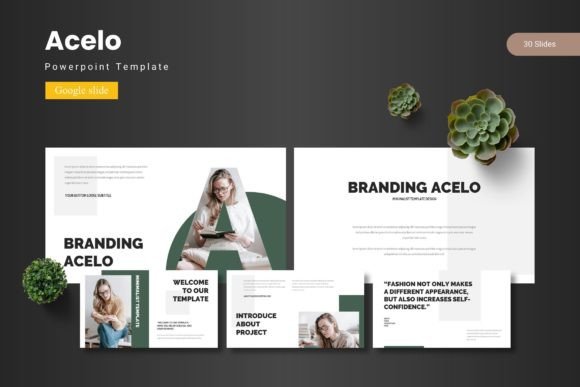
The most immediate characteristic of the Acelo Google Slide Template is its scale. With 150 slides organized into five distinct color variations, you effectively get 30 slides per color scheme. This is not a trivial collection of generic layouts. The template includes section break slides, infographic slides, gallery and portfolio slides, and a range of content layouts that support text, images, and data visualization. The structure is built around master slides, which means that global changes—such as adjusting a font or recoloring an element—can be applied across the entire presentation quickly and consistently.
The five color schemes are included as separate files within the main download folder, alongside the Google Slides files, a readme document, and information about fonts and photos. This packaging is straightforward. You choose the color direction that fits your brand or project, open the corresponding file, and begin editing. The separation by color keeps each file clean and reduces the risk of accidentally mixing design systems mid-project.
From a structural standpoint, the template covers common presentation needs: title slides, content slides, image-heavy layouts, data displays, and transitional pages that help break a longer deck into digestible sections. The inclusion of handcrafted infographics is a notable strength, as these are often time-consuming to build from scratch. The fact that all graphics are resizable and editable means you are not locked into fixed artwork. You can adjust sizes, swap colors, or remove elements without needing advanced design skills.
Key Features That Support Real Workflows
Several features of the Acelo Google Slide Template stand out when you consider how presentations are actually built and used in professional settings.
Picture placeholders with drag-and-drop simplicity
The template uses picture placeholders that allow you to drag and drop images directly into the designated areas. This is far more efficient than manually cropping and positioning each photo. For users who handle presentations regularly—marketers, educators, freelancers—this feature reduces friction significantly. The gallery and portfolio slides benefit especially well from this, as they often require consistent image sizing and alignment.
Master slide architecture
Master slide support is one of those features that becomes indispensable once you have used it. If you need to update the font across all slides, change the color of all headings, or add a logo to every page, master slides let you do that in one action. The Acelo template is built on this architecture, which adds a layer of reliability for longer decks. It also makes the template suitable for team environments where multiple people may be editing different sections of the same presentation.
Pixel-perfect illustrations and editable graphics
The claim of pixel-perfect illustrations holds up under normal viewing conditions. Graphics are clean, aligned, and consistent in style. Because they are editable, you can adjust them to match your specific content needs. For example, an infographic element that shows a four-step process can be recolored to match your brand palette or modified to show five steps by duplicating and repositioning. This flexibility extends the useful life of the template beyond a single project.
Five color schemes for brand flexibility
Having five color variations included out of the box means you are not forced to use a single aesthetic. The colors are premade, so you do not need to spend time choosing complementary palettes. At the same time, because the graphics are editable, you are not strictly limited to those five. You can modify any slide to use your own brand colors if needed. This combination of ready-to-use options and customization potential strikes a practical balance.
Real-World Performance and Usability Observations
When evaluating any template, the real test is how it behaves when you are under a deadline and need to produce a deck that communicates clearly and looks professional. Based on how the Acelo Google Slide Template is structured, several observations about its performance in real-world use are worth noting.
The 150-slide count is generous but requires intentional editing. No one should use all 150 slides in a single presentation. The value lies in having a large pool of layouts to choose from. You select the slides that match your content, delete the rest, and maintain visual harmony throughout. The section break slides are especially helpful for longer presentations where you need to shift topics visibly. For a standard 10–20 slide deck, you will likely use a subset of layouts and appreciate having options for different content types.
Editing efficiency is high once you understand master slides. If you are comfortable with Google Slides and understand how master slides work, you can customize the entire look of the template in under 15 minutes. If you are newer to Google Slides, the included readme file provides guidance. The learning curve is minimal, but the payoff in editing speed is substantial.
The infographic slides are a standout feature. In many templates, infographics are static images that cannot be modified easily. In Acelo, the infographic elements are built from editable shapes and text. This means you can update data points, change labels, and adjust visual emphasis. For consultants, educators, and analysts who need to present data without building charts from scratch, this is a time-saver that directly improves the quality of the final presentation.
Drag-and-drop image placement is consistent. The picture placeholders are sized and positioned in ways that make sense for both portrait and landscape images. The template handles image insertion without distorting or cropping awkwardly, provided you use reasonably high-resolution photos. This reliability matters when you are working with client images or stock photography that varies in aspect ratio.
Who Benefits Most from the Acelo Google Slide Template
Different templates suit different working styles and project types. The Acelo Google Slide Template is not a one-size-fits-all solution, but it aligns well with several specific user profiles.
- Freelancers and consultants who produce client-facing decks regularly will appreciate the volume of layouts and the ability to switch color schemes between projects. The editable graphics mean you can tailor each presentation without rebuilding the visual system each time.
- Small business owners and entrepreneurs who need to present to investors, partners, or customers will find the template credible out of the box. The section break slides and portfolio slides are particularly useful for pitch decks and capability presentations.
- Marketers and content creators who produce webinars, sales presentations, or educational content will benefit from the infographic elements and the gallery slides. The template supports both narrative-driven decks and visually dense presentations.
- Educators and trainers who need to organize information into clear sections will find the structure helpful. The 30-slide per color format allows for comprehensive lesson materials without visual repetition.
- Bloggers and publishers who create slide decks for online courses, lead magnets, or social media content will appreciate the drag-and-drop image handling and the ability to export slides as images or PDFs.
Practical Considerations and Limitations
No template is perfect for every situation, and the Acelo Google Slide Template has a few areas worth noting before purchase.
Font and photo information is provided, but assets are not always included. The readme file contains details about the fonts and photos used in the demo slides. You may need to download fonts separately if they are not standard Google Fonts. Similarly, the demo photos are for illustration only; you will need to supply your own images. This is standard practice, but it is worth knowing upfront so you can plan accordingly.
The 5 PPTX files are included for PowerPoint users. While the template is built for Google Slides, the inclusion of PPTX files means you can also use it in Microsoft PowerPoint. However, some formatting may shift slightly between platforms, especially with complex infographic elements. If you are primarily a PowerPoint user, test a few slides early to confirm that the transitions and alignments transfer correctly.
The design style is modern but not experimental. Acelo follows clean, professional conventions. It is not a template for highly creative or avant-garde presentations. If your brand uses unconventional layouts, bold typography, or heavily artistic imagery, you may find the template restrictive. Its strength is clarity and consistency, not visual surprise.
30 slides per color scheme is generous, but not every slide will suit every project. Some users may wish for more variation in data visualization layouts or additional options for timeline-style content. The template covers common use cases well, but if your work involves highly specialized diagram types, you may need to supplement with custom elements.
Assessing Long-Term Value
For users who create presentations regularly, the Acelo Google Slide Template offers strong long-term value. Because it is built on master slides and uses fully editable graphics, it can be reused across multiple projects with minor adjustments. Changing the color scheme, swapping images, and updating text for each new deck keeps the template fresh without requiring you to start over. The inclusion of five color files means you can maintain distinct visual identities for different clients or departments without editing the same file repeatedly.
The template also holds up well when used as a foundation for team-wide presentation standards. If you manage a small team or collaborate with freelancers, establishing a shared template with consistent master slides reduces the time spent on formatting inconsistencies. The ability to set global fonts and colors across all slides ensures that the final deck looks cohesive even when multiple contributors are involved.
Final Observations on Fit and Practical Use
The Acelo Google Slide Template delivers what it promises: a substantial library of professionally designed slides that are flexible, editable, and organized into usable color families. Its real-world strength lies in reducing the repetitive work of layout, alignment, and visual consistency. For professionals who need to produce clear, credible presentations without spending hours on design details, this template is a practical asset.
The most suitable users are those who value efficiency and consistency over creative experimentation. If your goal is to communicate information clearly, support your message with well-placed visuals, and present a professional image to your audience, Acelo provides a solid foundation. It is not a tool for pushing visual boundaries, but it is a reliable one for getting the job done well. As with any template, the best results come from treating it as a starting point—choosing the layouts that serve your content, customizing the colors and fonts to match your brand, and using the built-in flexibility to make each presentation feel intentional, not templated.
For freelancers, consultants, marketers, educators, and business owners who produce presentations regularly, the Acelo Google Slide Template represents a thoughtful investment in both time saved and quality gained. The 150-slide count, five color schemes, and editable infographics cover a broad range of presentation needs while keeping the editing process straightforward. If that matches the type of work you do, this template is worth serious consideration.