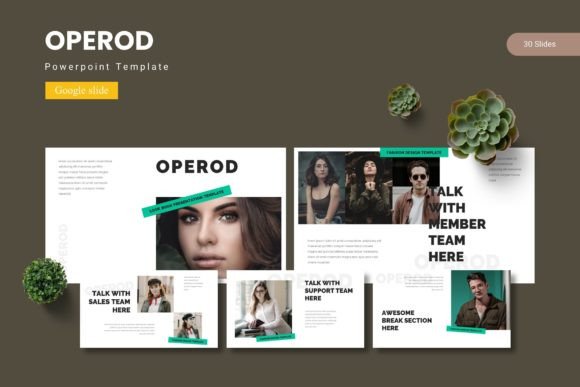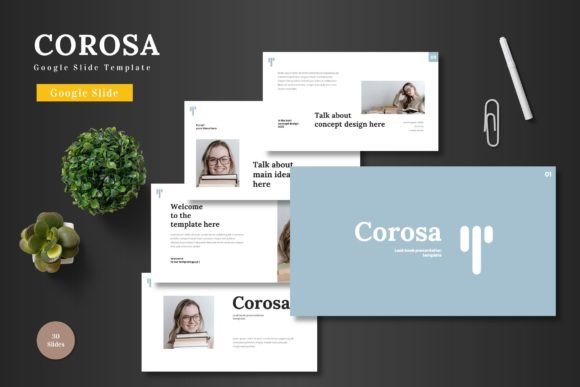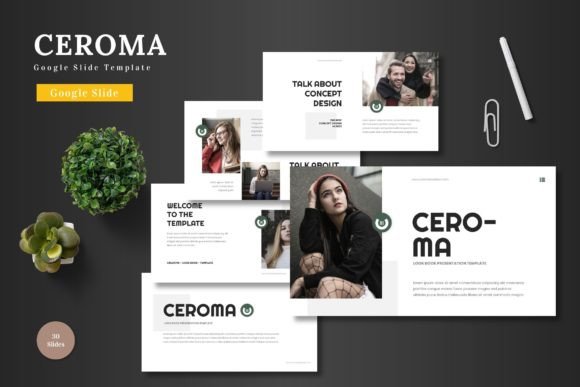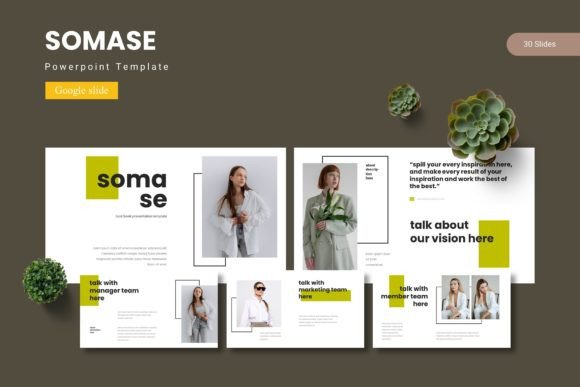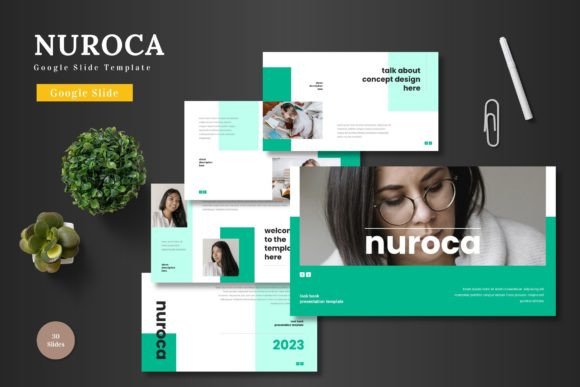
Nuroca Google Slide Template for Modern Presentations
Presentations are often the first impression you make on a client, investor, or audience. Getting that impression right means having a deck that is clear, visually consistent, and adaptable to your content. Nuroca - Google Slide Template offers a complete solution for anyone who needs a professional presentation without spending hours on design. It is a multipurpose template built directly in Google Slides, meaning you can edit everything from colors to images without leaving your browser. Whether you are preparing a pitch deck, an e-commerce catalog, or an internal business report, Nuroca gives you a foundation that is both flexible and polished.
What makes Nuroca stand out is its balance between structure and variety. With 150 total slides across five premade color schemes, you are not stuck with a single look. Each color variation includes 30 slides, giving you enough depth to tell a complete story. The template also includes section break slides, handcrafted infographics, and pixel-perfect illustrations. Because everything is based on master slides, any changes you make apply consistently across the deck. The result is a presentation that looks custom-made without the custom design work.
Who Benefits from Nuroca
This template is designed for a wide range of users. If you are a freelancer or small business owner, you likely need presentations that communicate professionalism quickly. Nuroca’s clean layout helps you focus on your message rather than fiddling with alignment. For marketers presenting campaign results or product launches, the infographics and portfolio slides make data and visuals easy to digest. Entrepreneurs working on pitch decks will appreciate the animated slides and the ability to swap colors to match branding. Educators and trainers can use the structured slides to walk through complex topics step by step. Even hobbyists creating personal projects or community presentations will find the template approachable enough to start immediately.
The template also works well for teams. Because everything is editable in Google Slides, team members can collaborate in real time. No one needs design software or special skills. The readme file included in the main file package explains the fonts and photo information, so you can maintain consistency even when multiple people contribute to the deck.
Creative Possibilities with Five Color Variations
One of Nuroca’s strongest features is the five premade color schemes. Each scheme includes 30 slides, meaning you can switch between looks depending on the audience or project. For a corporate quarterly review, you might choose a muted, professional palette. For a product launch or creative pitch, a brighter scheme could energize your content. You can also mix elements from different schemes if you are comfortable with minor adjustments. This flexibility allows you to maintain brand identity while keeping each presentation fresh.
The color variations are not just cosmetic. They change the tone of the entire deck. A dark background with accent colors feels modern and confident. A light, airy scheme feels approachable and transparent. Think about your audience before you settle on a scheme. Investors might respond better to a sophisticated, subdued palette. A creative agency client might appreciate something bold. Nuroca gives you the choice without requiring a redesign from scratch.
Practical Applications Across Industries
Let’s look at a few realistic scenarios where Nuroca works well.
Business Pitch Decks
A pitch deck needs to tell a compelling story quickly. Nuroca’s slide structure allows you to present your problem, solution, market size, business model, and team in a logical flow. The section break slides help you transition between chapters, keeping the audience oriented. The animated slides can add subtle motion to key points, helping them stand out without being distracting. Replace placeholder images with your own product photos or team shots using the drag-and-drop picture placeholders. The infographic slides are especially useful for showing traction, growth metrics, or competitive analysis in a visually clear way.
E-Commerce and Product Promotion
If you are launching a product or showcasing a catalog, Nuroca’s gallery and portfolio slides are a perfect fit. You can display multiple products per slide with clean spacing and consistent alignment. The color variations let you match the template to your brand’s color palette. Use the infographics to highlight features, pricing comparisons, or customer satisfaction scores. The template’s clean design ensures the focus stays on your products, not on distracting backgrounds or cluttered layouts.
Internal Business Reports
Quarterly updates, strategy reviews, and team presentations often suffer from dense text and boring slides. Nuroca’s handcrafted infographics turn data into visual stories. You can present sales figures, project timelines, or team achievements in a way that is easy to scan. The consistent master slides mean you can reuse the template month after month, only updating the content. Over time, your team will recognize the format, making meetings more efficient.
Educational and Training Content
For educators or trainers, Nuroca provides a structured way to present information. The 30 slides per color scheme give you room to break down complex topics into manageable steps. Use section breaks to separate modules or chapters. The picture placeholders let you add diagrams, screenshots, or illustrations. Because Google Slides is cloud-based, you can share the deck with students or trainees for review later. The animated slides can help emphasize key definitions or processes without needing advanced animation skills.
Keeping Your Presentation Clear and Effective
Having a great template is only part of the equation. How you use it matters just as much. Here are a few practical recommendations to keep your results organized and audience-friendly.
First, resist the urge to use every slide type in one deck. Nuroca offers variety, but a focused presentation is easier to follow. Choose the slides that best support your narrative and leave out the rest. Second, maintain consistency with your chosen color scheme. Even though you can edit colors freely, sticking to one scheme per deck creates a unified visual identity. If you need to highlight something, use one of the accent colors already in the palette.
Third, replace placeholder images with high-quality visuals that are relevant to your content. The drag-and-drop picture placeholders make this quick. Avoid generic stock photos that feel disconnected from your message. Fourth, take advantage of the master slides. If you need a uniform change across all slides—like updating a logo or changing a font—edit the master slide. This saves time and prevents errors.
Finally, consider your audience’s experience. Use the animated slides sparingly. A little motion can guide attention, but too much can feel chaotic. Test your presentation on a projector or shared screen before the actual meeting. What looks good on your laptop might appear different in another format. The readme file included in the main file package provides useful details on fonts and photo credits, so review it before finalizing your deck.
Adapting Nuroca for Different Platforms and Formats
Google Slides presentations are often shared online, printed, or presented live. Nuroca adapts well to each format. For online sharing, keep the slide transitions simple and the file size reasonable by optimizing images. The template’s widescreen format works well on most screens. For printed handouts, you might want to adjust the color scheme to ensure readability on paper. The pixel-perfect illustrations scale cleanly, so print quality remains high.
If you are presenting at a conference or in a large room, use the section breaks to create natural pauses. This gives your audience time to process each part of the story. The infographics are especially effective on large screens because they reduce reliance on dense text.
For collaborative projects, Google Slides allows real-time commenting and editing. Team members can leave feedback on specific slides, and you can track changes. This makes Nuroca a practical choice for agencies or departments that need to produce presentations quickly with input from multiple stakeholders.
Maintaining Originality and Consistency
While Nuroca provides a strong foundation, your content and voice make the presentation original. Use the template as a scaffold, not a cage. Customize the infographics with your own data. Write slide titles that reflect your perspective, not generic labels. Replace the sample text with case studies, quotes, or insights that are unique to your project. The template is designed to get out of your way, so your message stays front and center.
Consistency matters across multiple presentations. If you create a series of decks for a single client or campaign, stick with one color scheme and slide structure. Your audience will start to recognize your visual language, which builds familiarity and trust. Nuroca’s master slides make it easy to enforce this consistency without starting over each time.
The template also works well for non-profit or community presentations where resources are limited. You do not need a design subscription or expensive software. Everything is editable in Google Slides, and the included readme file guides you through setup. This accessibility is one of the reasons Nuroca is a practical choice for individuals and small teams.
Final Thoughts on Nuroca
Nuroca - Google Slide Template is more than a set of slides. It is a system for creating presentations that look intentional and professional. With 150 slides, five color variations, handcrafted infographics, and pixel-perfect illustrations, you have everything you need to build a deck for a pitch, a report, a product launch, or a classroom. The fact that everything is editable in Google Slides means you can focus on your content rather than design logistics. Whether you are a seasoned presenter or someone preparing their first major deck, Nuroca gives you a reliable starting point. Use its structure to stay organized, its flexibility to match your brand, and its clarity to communicate with confidence. That combination is what makes a presentation truly effective.