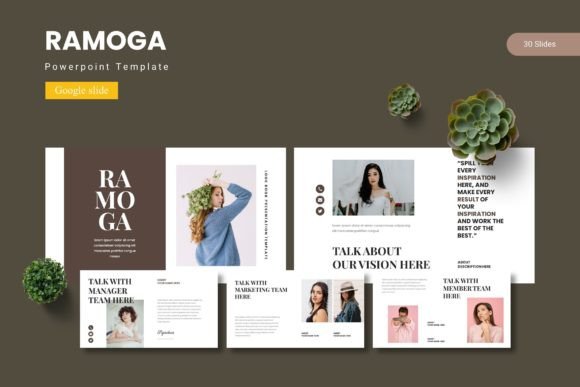
Ramoga - Google Slide Template – When Your Slides Need to Do More Than Just Inform
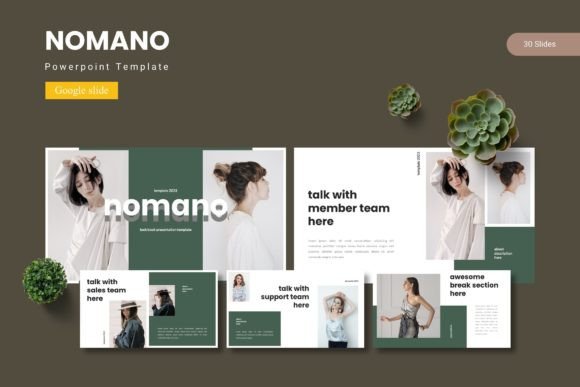
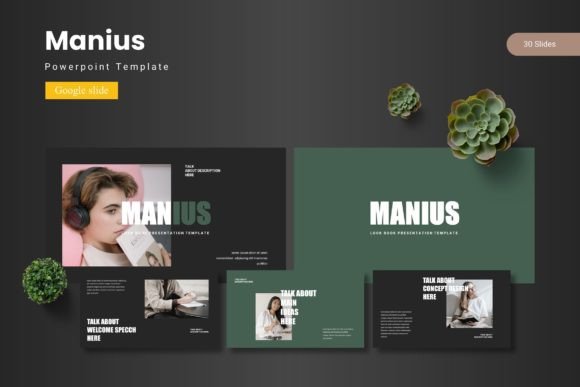
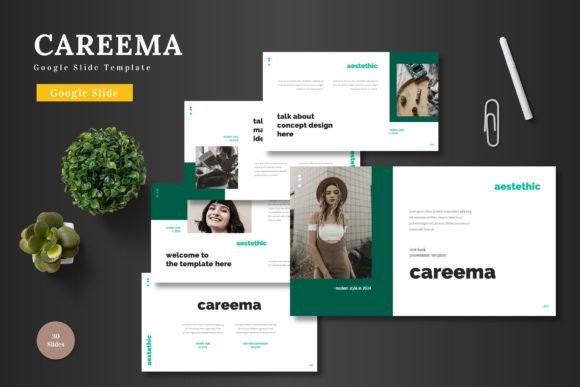
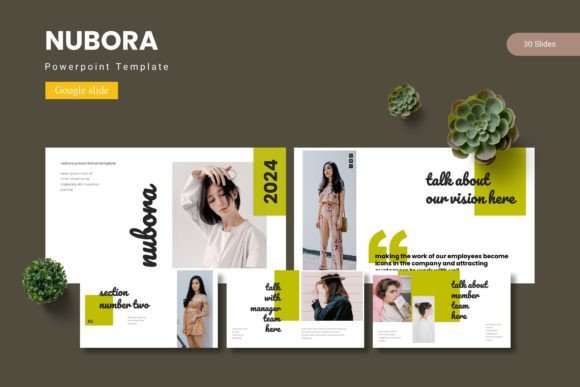
If you have ever stared at a blank slide deck wondering how to make your point stick, you already know that a good template does half the work. The Ramoga - Google Slide Template is one of those rare finds that does not just give you a background and a font. It hands you a full visual language—150 slides spread across five color variations, each set of 30 slides built for a different slice of your presentation needs. Whether you are preparing for a quarterly review, a creative pitch, or a community talk, Ramoga is designed to help you communicate without the friction of starting from scratch.
For the Freelancer Pitching Their Next Big Client
Imagine you are a freelance designer or consultant sitting down to prepare a proposal for a potential client. You want to show them you understand their industry, but you also need to reflect your own brand. Ramoga gives you that flexibility. With its master-slide structure, you can drop in your logo, tweak the color scheme to match your brand palette, and still keep the polished look of a professionally designed deck. The picture placeholders let you drag and drop screenshots of your past work without having to resize or crop manually. That means less time formatting and more time refining your message.
One practical scenario: you are pitching a branding overhaul to a local restaurant chain. You need slides for mood boards, competitor analysis, timeline projections, and a gallery of your previous restaurant projects. Ramoga includes dedicated gallery and portfolio slides that let you display images in a clean, grid-like layout. You are not forcing your work into a generic text slide. You are using a structure that was built to make visuals the hero. That kind of thoughtful layout can help potential clients see your vision clearly, and it subtly communicates that you pay attention to detail.
Inside the Classroom or Training Room
Educators and trainers often face a different challenge. You are not selling a product—you are guiding people through new information. Your slides need to be clear, structured, and easy to follow without being distracting. Ramoga covers this well with its section break slides. If you are teaching a multi-part workshop, you can use those break slides to signal a shift in topic. For example, you might have a section break that says "Module 2: Financial Fundamentals" before diving into budgeting examples. That small visual cue helps learners mentally reset and prepare for the next segment. Another strength for trainers is the infographic-based layouts. Handcrafted infographics mean you can present data or step-by-step processes in a way that feels more like a story and less like a spreadsheet. If you are explaining a workflow, employee onboarding steps, or even the anatomy of a plant in a biology class, those infographic slides let you show relationships and sequences visually. Your audience does not have to work as hard to understand the flow. They can see it.
The Nonprofit or Community Organizer
Nonprofit presentations often walk a fine line. You need to convey urgency and emotion without overwhelming your audience. You also need to be practical and show impact clearly. Ramoga is useful here because it balances visual warmth with structure. The five premade color schemes include options that feel professional but not cold. If you are presenting a fundraising proposal, you might choose a warmer color variation to keep the tone approachable. You can also use the gallery slides to show photos of your team in action—volunteers at a food drive, community members at a workshop, or before-and-after images of a project. The drag-and-drop picture placeholders make swapping images simple, so even if you are not a design expert, your slides look intentional. For budget reviews or impact reports, the infographic slides can turn raw numbers into something donors and board members can digest quickly. Instead of a bulleted list of statistics, you can show a visual comparison that makes your point in seconds.
Corporate Teams and Internal Updates
Internal presentations often feel like a chore, but they do not have to look like one. If you are a team lead, a project manager, or a department head, you likely need to present updates, roadmaps, or strategic plans on a regular basis. Ramoga gives you the tools to make those meetings feel less monotonous. The 150 total slides give you enough variety to keep your decks fresh without reinventing the wheel each time. You can also use the five color variations to segment different parts of a larger presentation. For example, you could use one color for the corporate overview, another for the product roadmap, and a third for the financial summary. The change in color signals to the audience that you have shifted topics without needing a slide that says "New Section." It is a subtle but effective way to guide attention.
Creative Portfolios and Personal Branding
If you are a photographer, illustrator, or anyone whose work depends on visual impact, Ramoga is worth considering for your portfolio deck. The gallery and portfolio slides are specifically designed to let images breathe. You are not cramming multiple photos into a single slide. Instead, you can present each piece with enough space for the viewer to appreciate it. The pixel-perfect illustrations built into the template ensure that any icons or graphic elements you use remain crisp, whether they are on a laptop screen or a projector.
A Closer Look at the 150 Slides and Five Color Variations
One of the practical advantages of having 150 slides is that you do not have to reuse the same layout over and over. In a longer presentation, repetition can make an audience tune out. With Ramoga, you have 30 slides per color set, which means you can mix and match layouts for title slides, content slides, image-heavy spreads, and data presentations. If you are creating a deck that needs to cover multiple angles—say, a product launch that includes market research, design mockups, a timeline, and a pricing strategy—you can use different slide types to keep each section visually distinct. The five color variations are another layer of utility. They are not just superficial changes; they come with coordinated tones that affect the overall mood of your presentation. If you are pitching to a conservative finance firm, you might choose a more subdued color scheme. If you are presenting to a creative agency, you can pick something bolder. Having the option to switch colors without rebuilding your slides is a time-saver, especially when you are tailoring the same base content to different audiences.
Practical Considerations Before You Dive In
While Ramoga offers a lot out of the box, there are a few things to keep in mind. The template comes in a folder that includes Google Slides files, a Readme first document, and font and photo information. That means you will need to take a moment to read the Readme file to understand how the files are organized. Skipping that step might leave you confused about which file to start with. The font information is also worth reviewing because the template likely uses specific fonts that you may need to install or substitute if they are not available in your Google Fonts library. One potential limitation is that Google Slides itself has fewer animation and transition options compared to PowerPoint. If your presentation relies heavily on complex animations, you might find the platform restrictive. However, Ramoga is optimized for clarity and structure, so it works best when your focus is on content rather than flashy effects. For most professional, educational, and creative presentations, that is a trade-off worth making.
Where Ramoga Shines and Where It Might Not
Ramoga is strongest when you need a polished, cohesive deck quickly. It is ideal for people who present regularly but do not have the time or design skills to build slides from scratch. Freelancers, educators, nonprofit leaders, corporate teams, and creative professionals will all find scenarios where this template saves them effort and improves their final result. That said, for the vast majority of presentation needs, Ramoga provides a reliable foundation. The 150 slides, handcrafted infographics, picture placeholders, and thoughtful section breaks are all features that help you communicate with less friction. When you are preparing for a meeting, a pitch, or a workshop, the last thing you want to worry about is whether your slides look disjointed or amateurish. Ramoga lets you focus on your message, and that is exactly what a good template should do.