Colega Keynote Template: A Practical Look at Structure, Flexibility, and Fit
When you are preparing a presentation, the difference between a good one and a great one often comes down to how well your slides support your message. A template can save time, but not all templates serve the same purpose. Some prioritize flashy visuals over clarity, while others offer structure without much room for adaptation. The Colega Keynote Template sits somewhere in the middle, balancing a polished aesthetic with enough flexibility to suit a range of projects. Understanding what it offers, where it excels, and where it might fall short can help you decide if it fits your next presentation.
What Colega Keynote Template Brings to Your Workflow
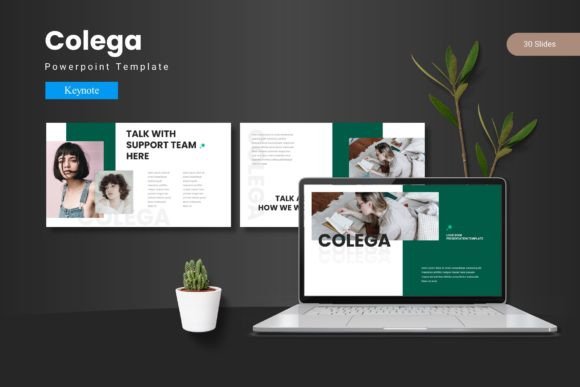
At its core, the Colega Keynote Template is a collection of 150 slides spread across five pre-made color variations. Each color set includes 30 slides, which means you can maintain a consistent look throughout an entire presentation without designing each slide from scratch. The template is built on master slides, so any changes you make to fonts, colors, or spacing apply across the deck automatically. That alone can save hours of manual adjustment.
The template also includes section break slides, infographic layouts, gallery and portfolio slides, and placeholders for images that let you drag and drop your own visuals. All graphics are resizable and editable, which gives you control over the final look without requiring advanced design skills. For anyone who has worked with templates that lock certain elements or force you into rigid layouts, the flexibility here is a notable advantage.
The Role of 150 Slides Across Five Color Schemes
Having 150 slides might sound excessive at first, but the variety serves a practical purpose. Different sections of a presentation often require different layouts. You might need a bold section break to signal a new topic, a data-friendly infographic to explain a trend, and a clean portfolio slide to showcase examples. The Colega Keynote Template provides dedicated slides for each of these scenarios. The five color schemes allow you to switch between looks without rebuilding your deck, which is useful if you are preparing multiple versions for different audiences or testing which palette resonates best.
That said, not everyone needs 150 slides. If you are putting together a short internal update or a quick pitch, you might only use a fraction of what is available. In those cases, the abundance of options can feel overwhelming rather than helpful. The template is best suited for projects where variety and visual structure matter, such as client proposals, portfolio reviews, conference talks, or educational modules.
Strengths That Stand Out in Everyday Use
One of the most practical strengths of the Colega Keynote Template is its reliance on master slides. When you edit a master slide, every slide based on that master updates automatically. This is especially useful when you are working under a deadline and need to adjust fonts, colors, or alignment across the entire deck. It reduces the risk of inconsistencies that can make a presentation look rushed or unprofessional.
The drag-and-drop picture placeholders are another time-saver. Instead of cropping and resizing images manually, you simply drop your photo into the placeholder, and it snaps into the correct position. This might seem like a small detail, but when you are handling multiple images, it makes a noticeable difference in workflow speed.
All graphics in the template are vector-based and fully editable. That means you can resize icons, change their colors, or move them around without losing quality. If you have a specific brand color or a unique visual style, you are not locked into the template's default choices. You can adapt the graphics to match your identity rather than the other way around.
Where Colega Works Best: Realistic Use Cases
Consider a scenario where you are preparing a portfolio presentation for a creative agency review. You need to show a range of past work, include case studies with data points, and present the team's capabilities in a clear, visually consistent way. The Colega Keynote Template gives you portfolio and gallery slides for showcasing work, infographic layouts for presenting metrics, and section breaks to separate different parts of your story. The five color schemes let you choose a palette that matches your brand without starting from zero.
Another realistic use case is a conference talk where you want to maintain audience engagement across 20 to 30 slides. The variation in layout options helps prevent visual fatigue. Section breaks can mark transitions, infographics can break up text-heavy slides, and the consistent design language ties everything together. For a speaker who wants the audience to focus on content rather than slide design, this template provides a reliable foundation.
Tradeoffs and Limitations to Consider
No template is perfect for every situation, and the Colega Keynote Template has its own tradeoffs. One limitation is that it is designed specifically for Keynote. If you or your team primarily use PowerPoint, Google Slides, or another platform, you would need to convert the file, which can sometimes cause formatting shifts. Even with careful conversion, some master slide behaviors, animations, or font placements may not transfer exactly. For teams that collaborate across multiple presentation tools, this is a factor worth weighing.
Another consideration is the learning curve with master slides. While master slides are powerful, they require a basic understanding of how they work. If you are not familiar with editing masters in Keynote, you might accidentally override a layout or struggle to customize certain elements. The template includes a readme file with instructions, but users who prefer a simpler drag-and-drop experience might find the initial setup slightly more involved than expected.
The template also comes with five pre-made color schemes. While this provides variety, it does not cover every possible brand palette. If your brand colors fall outside these schemes, you will need to manually adjust elements. Because the graphics are editable, this is entirely possible, but it does require extra time. For users who need a template that matches a specific color identity out of the box, the Colega Keynote Template may require more customization than some alternatives.
When Another Option Might Serve You Better
If your presentation is very short or highly informal, a smaller, simpler template might be more efficient. A ten-slide internal update, for example, does not need 150 slide options or five color variations. In that case, a minimal template or even a clean custom design could save you from sifting through layouts you will not use.
If you need advanced animations, interactive elements, or data visualization that goes beyond standard infographics, the Colega Keynote Template may not cover all your needs. Its infographic layouts are handcrafted and visually clean, but they are static. For dynamic charts, live data feeds, or complex animations, you would need to build those elements separately or look for a template that specializes in data-heavy presentations.
Team collaboration is another factor. If multiple people are editing the same presentation across different devices or platforms, the template's reliance on Keynote's native features can create compatibility hurdles. Cloud-based tools that auto-sync and allow real-time editing across platforms might be a better fit for distributed teams.
Decision Factors to Help You Choose
Before deciding on the Colega Keynote Template, consider the following aspects of your project:
- Presentation length and variety: Longer presentations with multiple sections benefit most from the template's range of slide types. Short presentations may not need the full set.
- Platform compatibility: If your workflow is entirely within Keynote, the template integrates seamlessly. If you need to share or edit in other tools, plan for potential conversion issues.
- Customization needs: If your brand colors and fonts are close to one of the five schemes, setup will be quick. If you need significant customization, factor in extra adjustment time.
- Design skill level: Users comfortable with master slides will get the most out of the template. Beginners may need to spend a little time learning the basics, but the readme file provides guidance.
- Visual priorities: If clean, consistent, and professional visuals are your primary goal, this template delivers. If you need complex interactivity or live data, you may need to supplement it.
How Colega Compares in the Broader Context of Presentation Templates
When you look at presentation templates as a category, most fall into two camps: those that prioritize style over substance and those that prioritize structure over personality. The Colega Keynote Template tries to balance both. It offers enough visual polish to keep an audience engaged, but it does not rely on heavy animations or trendy design gimmicks. The focus is on clarity, consistency, and ease of use.
Compared to templates that lock you into a single layout or force you to work around rigid design elements, Colega gives you more control. The editable graphics and master slide structure mean you are not stuck with someone else's design decisions. At the same time, it does not offer the same level of creative freedom as building a presentation from scratch. For most professional presentations, that tradeoff is acceptable, but it is worth knowing where you fall on that spectrum.
Templates that target specific industries, such as medical, financial, or educational fields, often include industry-specific icons, charts, or terminology. The Colega Keynote Template is more general-purpose. Its infographics and layouts work well for business, creative, and educational contexts, but they are not tailored to any one niche. If you need very specialized visuals, you may need to adapt the template or supplement it with custom graphics.
Final Thoughts on Fit and Value
The Colega Keynote Template is a solid choice for anyone who needs a professional, flexible, and visually consistent presentation deck without starting from zero. Its 150 slides, five color schemes, and master slide structure provide a strong foundation for a wide range of projects. The template works best when you have time to customize it to your needs and when your presentation requires variety across multiple sections.
For shorter or simpler presentations, or for teams that rely on multiple presentation platforms, other solutions may be more efficient. But for the right use case, the Colega Keynote Template offers a practical balance of structure and adaptability. By understanding what it does well and where its limitations lie, you can make a more informed decision about whether it fits your next presentation.