Niruda – Google Slide Template: What Most Users Get Wrong and How to Fix It
When you need to create a presentation that looks professional without spending hours on design, a template like Niruda – Google Slide Template seems like the obvious answer. And it is—but only if you use it the right way. Many people download a template, drop in their content, and wonder why the result still feels flat or disjointed. The problem isn't the template. The problem is how they approach it.
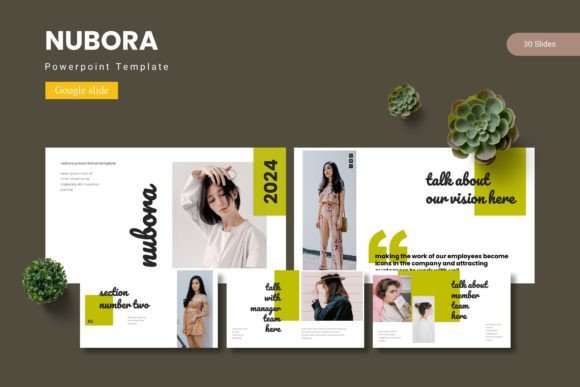
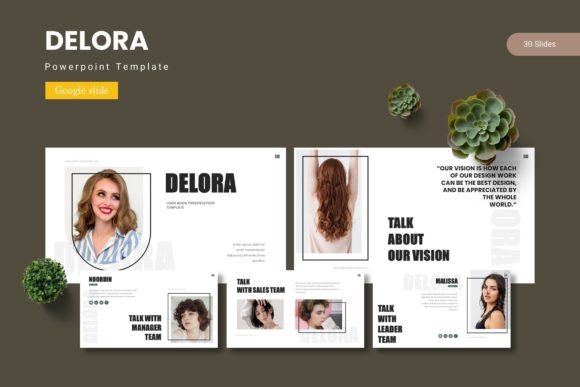
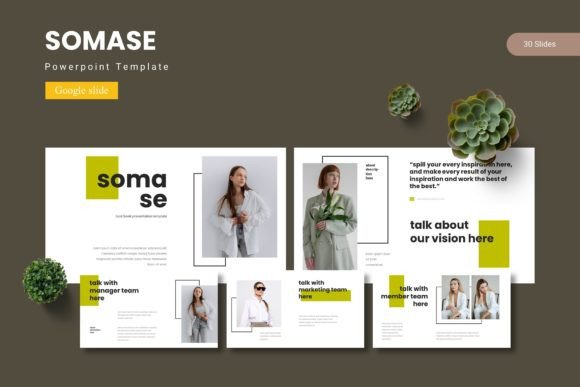
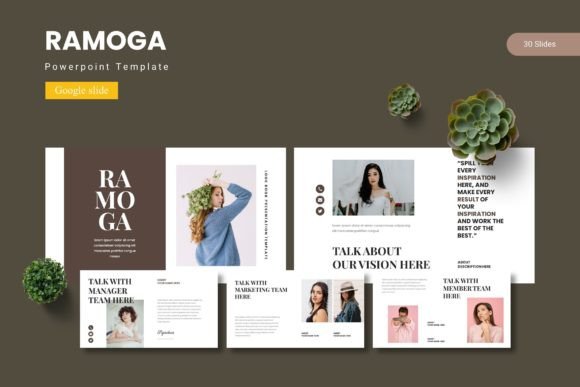
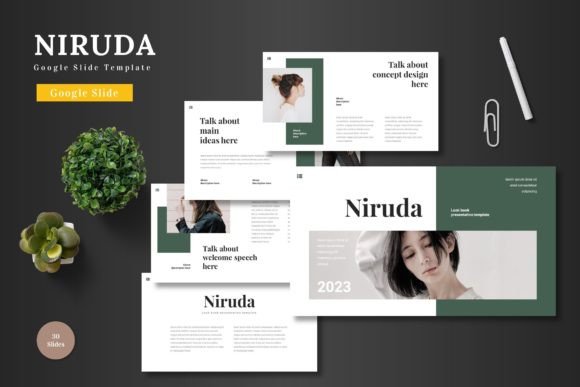
Niruda offers 150 total slides across five premade colors, with 30 slides per template, section break slides, handcrafted infographics, and pixel-perfect illustrations. It comes with five color variations, master slides for consistent editing, and drag-and-drop picture placeholders. On paper, that sounds like everything you need. But having all those options doesn't automatically make your presentation better—it just gives you more ways to make avoidable mistakes.
Choosing the Wrong Color Scheme Before You Understand Your Audience
Niruda includes five color variations, which is generous. But many users pick a color scheme based on what looks nice to them personally, without considering who will be watching the presentation. A dark, moody palette might look striking on your screen, but if you are presenting to a conservative corporate board or a senior leadership team, that same palette can feel out of place or even distracting.
The better approach is to choose your color scheme after you have identified the tone of your content and the expectations of your audience. For a product launch aimed at a creative agency, a bold accent color makes sense. For a quarterly financial review, a neutral or muted variation is safer and more appropriate. The five color options in Niruda are not just decorative—they are strategic tools. Treat them that way.
Overloading Slides Because You Have Too Many Options
With 150 slides across five themes, it is tempting to use a different layout for every point you want to make. That variety is one of the strengths of Niruda, but it becomes a weakness when you switch layouts without a logical reason. Your audience ends up confused, not because the information is hard to understand, but because the visual structure keeps changing.
Pick three to four slide layouts for the body of your presentation and stick with them. Use the section break slides to signal major transitions. Use the gallery and portfolio slides only when you actually need to showcase images. The template gives you flexibility, but consistency is what builds trust with your audience. The best presentations feel cohesive, not like a demo of every slide option available.
Ignoring Master Slides and Editing the Wrong Way
One of the most overlooked features in Niruda is the master slides. Because each slide looks polished out of the box, many users start editing individual slides directly. They change fonts, move elements, and resize graphics one slide at a time. That works fine for a three-slide deck, but for a 20- or 30-slide presentation, it creates a maintenance nightmare. If you later want to adjust the heading font across all slides, you have to revisit every single one.
Instead, use the master slide functionality to make global changes first. Adjust the font styles, the color palette, and the positioning of recurring elements at the master level. Then apply those changes to all slides at once. This is exactly what master slides were designed for, and Niruda supports them fully. Taking ten minutes to set up your master slides before you start adding content will save you hours of repetitive work later.
Treating Infographics as Decoration Rather Than Communication
Niruda includes handcrafted infographics, and they are one of the strongest features of this template. But too often, people drop an infographic onto a slide simply because it looks impressive, without checking whether it actually clarifies the data or message. An infographic that looks beautiful but misrepresents your numbers, or one that is visually complex but says nothing meaningful, hurts your credibility more than a simple bullet list would.
Use infographics only when they make your point easier to grasp at a glance. If you are showing a trend over time, a line chart or timeline graphic works. If you are comparing proportions, a pie or bar infographic is appropriate. If you are listing features, a simple icon grid is better than a forced infographic layout. The graphics in Niruda are resizable and editable, so you can adapt them to your actual data rather than forcing your data into a decorative shape.
Dragging and Dropping Images Without Checking Quality
The picture placeholders in Niruda are convenient—you drag an image in, and it snaps into place. That ease of use can lead to a common mistake: using any image that fits, regardless of resolution, aspect ratio, or relevance. A low-resolution image stretched to fill a large placeholder looks unprofessional. An image with the wrong aspect ratio gets cropped awkwardly. An image that does not match the tone of your content confuses the message.
Before you drag an image into a placeholder, open it in an image editor or preview tool. Make sure it is at least as wide and tall as the placeholder area. Check that the aspect ratio is close to what the placeholder expects. And most importantly, confirm that the image supports your point rather than just decorating the slide. Niruda's pixel-perfect illustrations are already there to add visual interest—use them intentionally, and supplement with high-quality external images only when necessary.
Buying Without Checking File Compatibility and Font Requirements
This is a mistake that happens before you even start designing. Niruda is a Google Slides template, but it also includes PPTX files. Some users assume they can open the PPTX files in any version of PowerPoint without issues. Others assume the Google Slides version works seamlessly on any device. Both assumptions can lead to frustration when fonts break, layouts shift, or animations fail.
Before you purchase or download, check the "Readme First" file that comes with the template. It tells you exactly which fonts are used and where to get them. If you are using the Google Slides version, make sure you are working in a browser that supports all features. If you are using the PPTX files in PowerPoint, test a few slides on the actual device you will present from. Template files are designed in a controlled environment—your presentation environment may be different, and you need to verify compatibility early.
Using All Five Color Schemes in One Presentation
The Niruda folder contains five separate color schemes, and each scheme has 30 slides. Some users see that as permission to mix and match across color families within the same deck. A blue section here, a green section there, a purple section to close. While that might feel creative, it usually ends up looking disjointed. The audience perceives each color shift as a new presentation rather than a continuation of the same narrative.
Pick one color scheme per presentation. If you need to differentiate sections, use the section break slides within that same color family. The template already includes section break slides for each color, so you can signal transitions without changing the overall palette. If you absolutely need a second color scheme for a specific reason—such as a client's brand colors—introduce it sparingly and only after the main palette is established.
Overlooking the Portfolio and Gallery Slides When They Could Help
The opposite mistake is also common: ignoring the gallery and portfolio slides altogether. These slide types are included in the template, but many users stick to standard content layouts and miss an opportunity to present visual work effectively. If you are a photographer, designer, architect, or any professional who relies on visual evidence of your work, the gallery slides are where your presentation gains impact.
Instead of embedding images one by one into generic slides, use the dedicated gallery layouts. They are designed to showcase visuals without competing text, and they maintain consistent spacing and alignment. The drag-and-drop placeholders make it easy to swap images in and out. Reserve at least two or three gallery slides for your strongest visuals, and let the images do the talking.
Relying on the Template to Do the Work of Preparation
This is the most important point. Niruda – Google Slide Template is a tool, not a substitute for clear thinking. A well-designed template makes your content look better, but it does not make your content better. I have seen people spend hours tweaking slide transitions, adjusting icon positions, and choosing the perfect shade of blue, while the actual message remains vague, poorly organized, or overly dense.
Start with your narrative. Write your key points, structure your argument, and decide what you want the audience to remember. Only then open the template and assign your content to the appropriate slide layouts. The template will elevate your presentation, but it cannot rescue a weak story. Use the 150 slides and five color schemes as a way to amplify a message that already works on its own.
What to Check Before You Commit
If you are considering Niruda for an upcoming project, take these steps first. Review the "Readme First" file for font and photo credit requirements. Open the Google Slides version on the device you plan to present from and verify that all elements display correctly. Test the drag-and-drop placeholders with your own images to confirm they crop as expected. Decide on one color scheme and stick with it for the entire deck. Set up your master slides before adding a single piece of content. And most importantly, clarify your message before you worry about your slides.
The Niruda template is versatile and well-constructed. It gives you room to create presentations that look polished without requiring design skills. But like any tool, it works best when used with intention. Avoid the common mistakes of color hopping, layout overload, and content neglect. Approach the template as a framework for clarity, not a shortcut for thinking. Your audience will notice the difference.